How to Use AI to Sort Stamps and Build a Digital Collection?
It is a familiar story: stamps pile up at home for years — a box inherited from your grandfather, half-finished albums and full shoeboxes. At some point there is so much that you lose track of it all. A digital collection can be the answer — but how do you easily record thousands of stamps by hand? We believe our digital collection and the connected Znamky.cz AI app, which we have just introduced, can help you a great deal.
AI stamp recognition: photograph a whole album page and the digital collection takes in, say, 50 stamps at once. It works on the web and in the mobile app, and this article shows you step by step how.
Our approach: we build on our own data and photos
There is no shortage of collection-management apps. Most of them build on a generic reference database — a manually maintained list of items where you enter a catalogue number, and that is usually all. We took a different route — we do not stop at basic record-keeping but build on a database of items and their photographs. The identification itself is helped by the scans and photos accumulated over years of running our shop.
It is on these photographs that we trained our own detection model — on Czechoslovak as well as foreign stamps — and we keep improving it so that over time it handles further properties of stamps. For identification the AI then draws on items that have passed through our shop: currently almost 30,000 different stamps it can look up from your photograph.
Our tool can help every collector, not just our customers and philatelists. You can try the collection free of charge — and for other collecting fields too.
Step by step in the mobile app
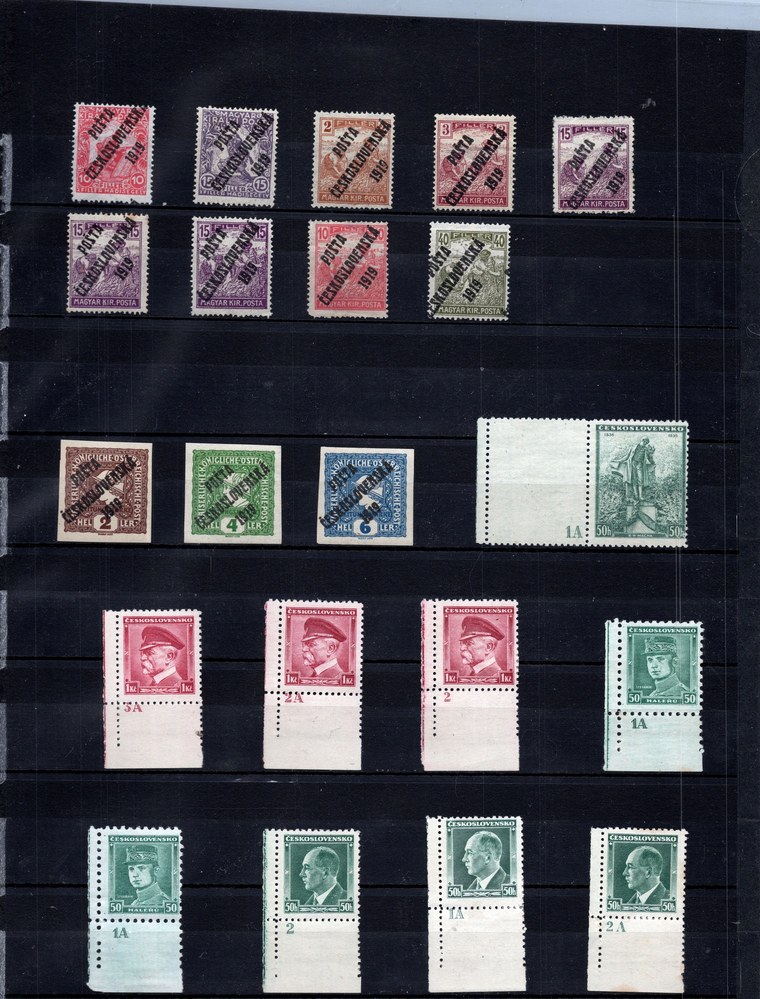
1. Photograph the whole page, not just individual stamps
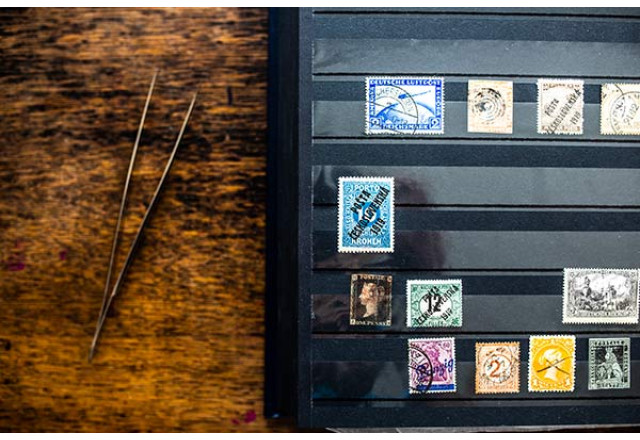
This is the heart of it. You do not photograph stamp by stamp — put the album or stockbook under good light and shoot the entire sheet at once.
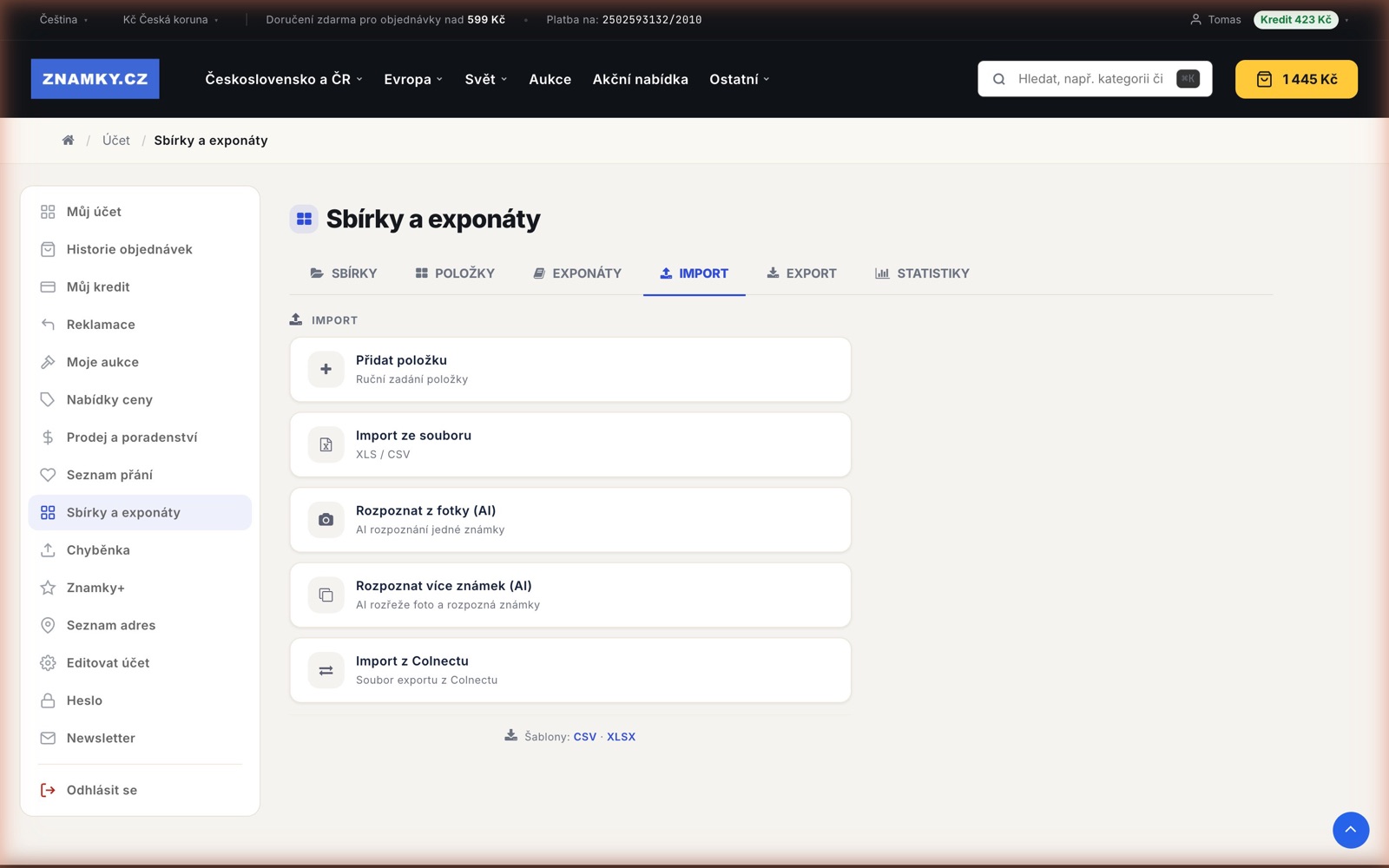
You can add the image directly in the mobile app or on the web under My account / Collections and exhibits.
2. Start AI recognition and pick a folder
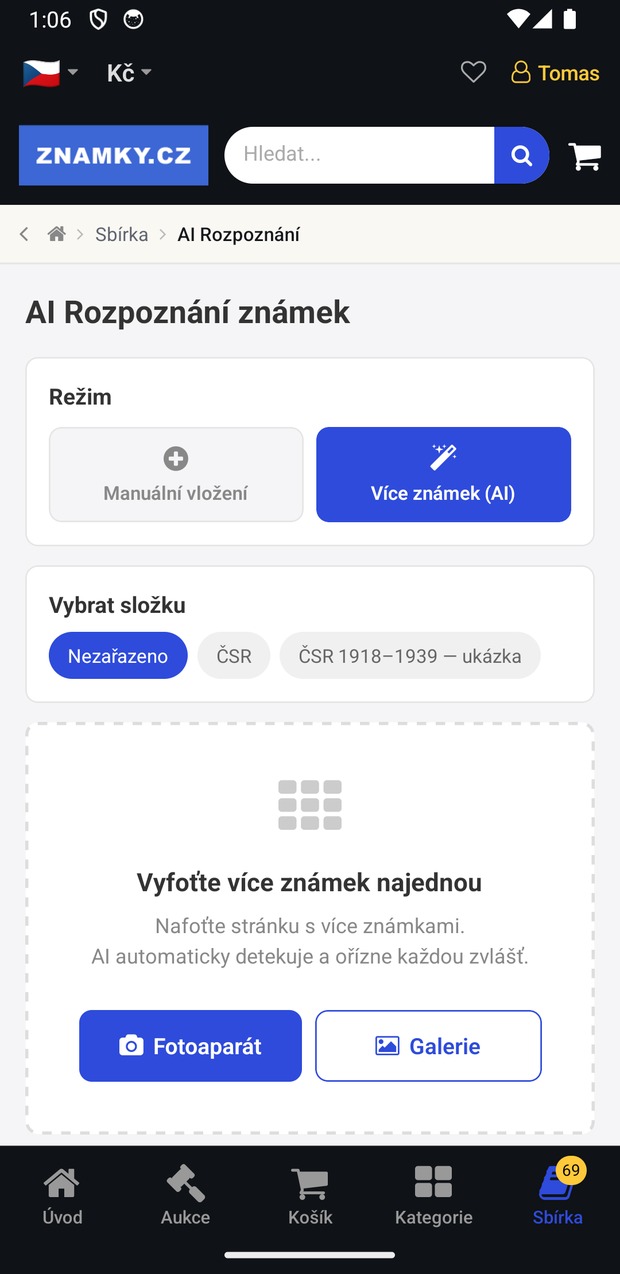
In the app open Collection → AI Recognition and tap the camera icon. Then switch the mode to Multiple stamps (AI) and choose the folder the stamps will go into. You can shoot straight away or pick an image from the gallery.
3. The AI finds and cuts out every stamp separately
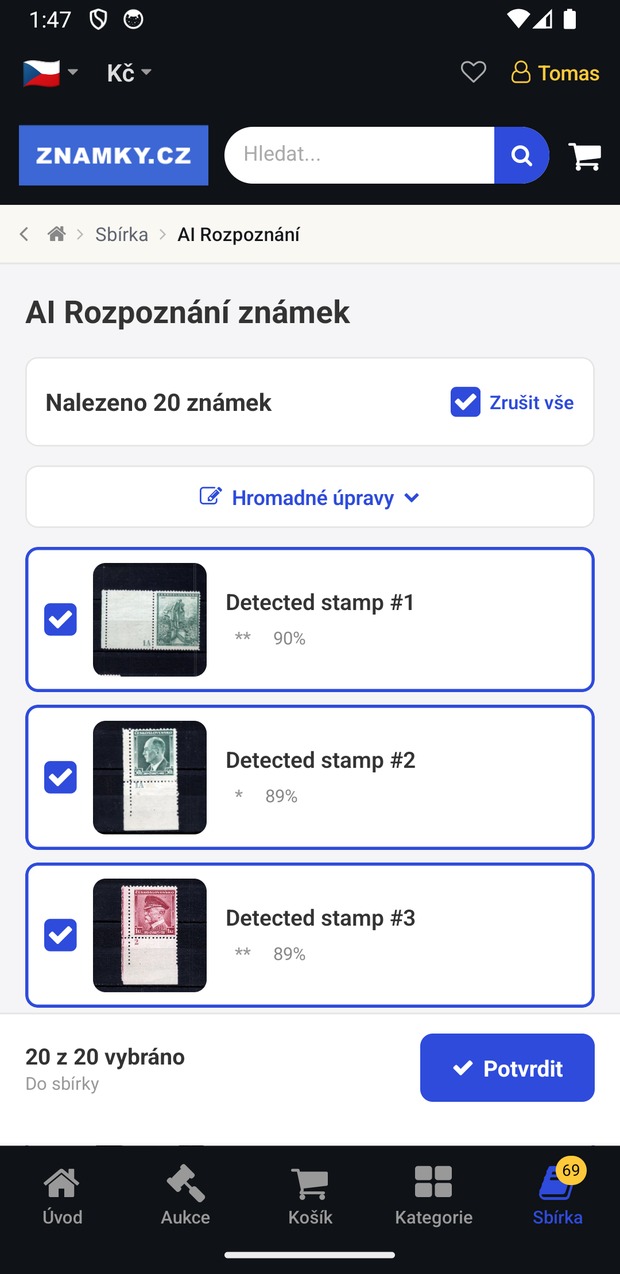
Within seconds you get a list of what was found — in this example the AI detected 20 stamps on a single page. For each one you see a cut-out preview, an estimated condition (** mint never hinged, * hinged, # used) and the recognition confidence as a percentage. Untick whatever is wrong and confirm the rest with one button. There are also bulk edits, so you can set the country or period for a whole page at once.
4. The collection is ready and easy to sort right away
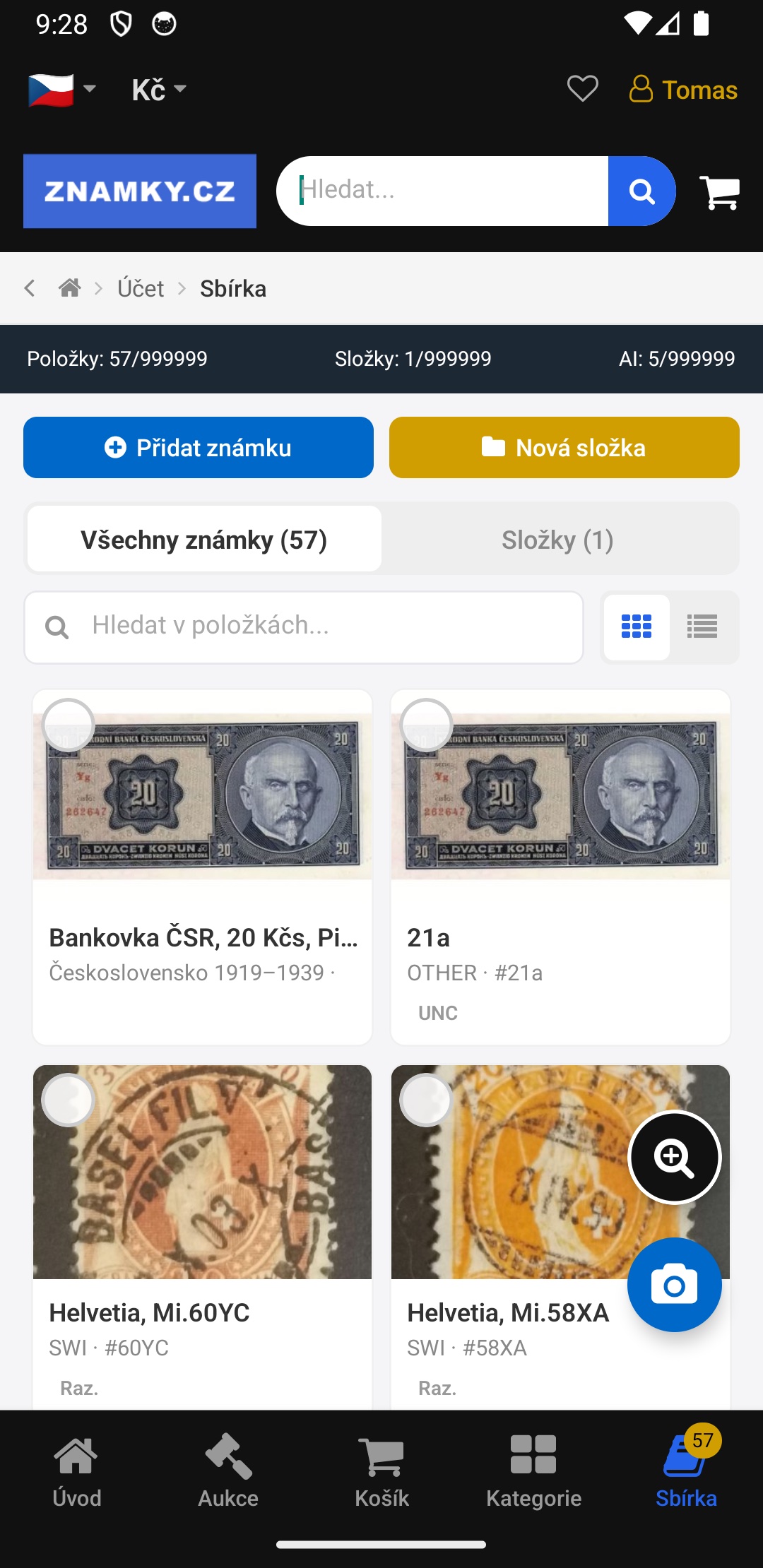
Confirmed stamps appear in the collection with their image. To identify the country and catalogue number, click a stamp and choose Identify with AI in the window that opens. The AI shows you recommended items from the shop, and one click attaches their catalogue numbers and classification to your stamp.
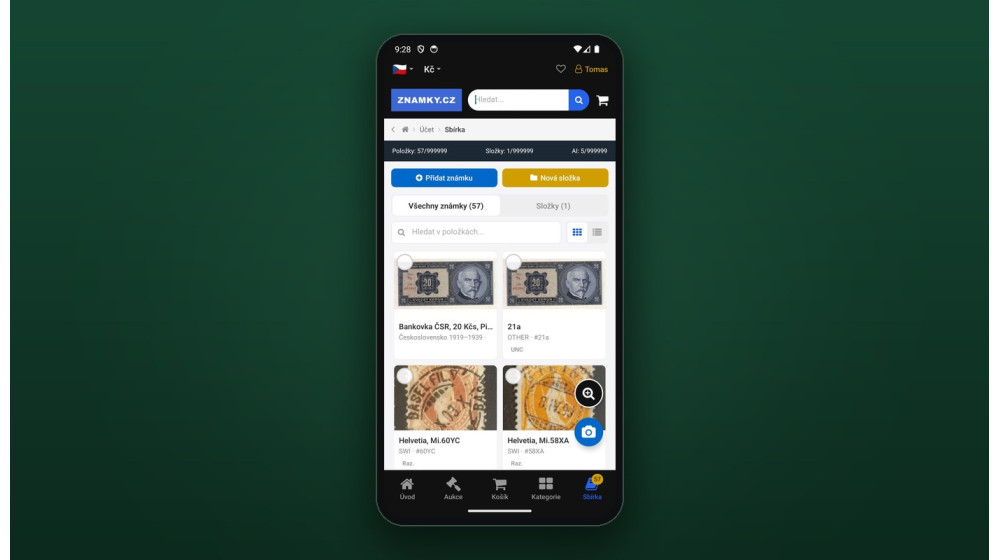
You can filter the collection, sort it into folders, switch between tiles and list view and track its value. You can also record the purchase, selling and estimated price. The top bar shows how much of your quota you have used.
The value of your collection, under your control
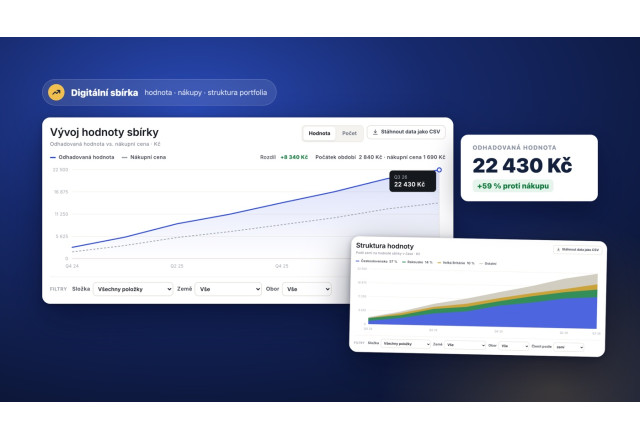
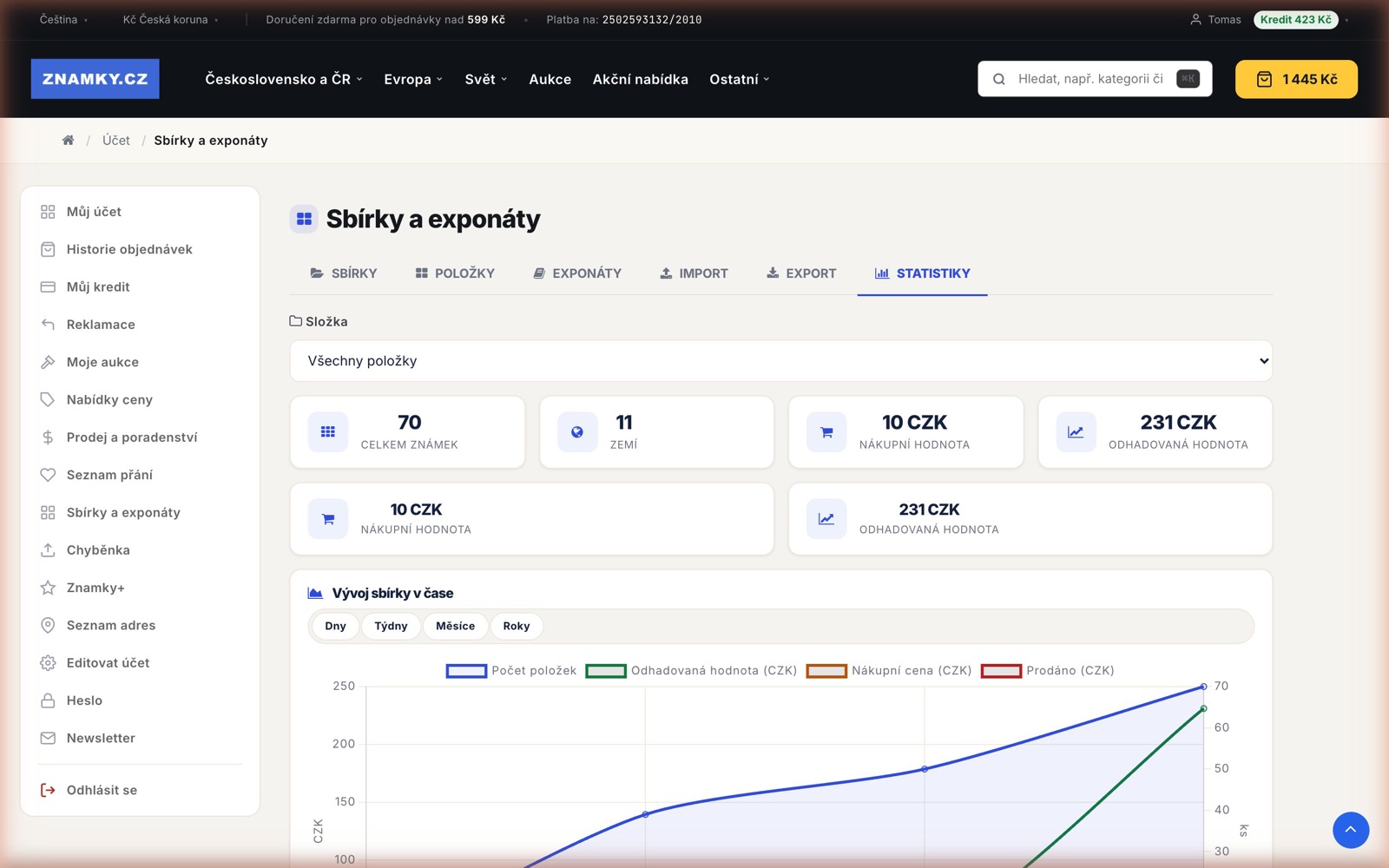
Item values are entirely in your hands. For every stamp you can record the purchase price, the selling price and your own value estimate, and the collection statistics keep adding them up — so you see at a glance what you have put into the collection and what you value it at. Nothing is filled in automatically and a figure you enter is never overwritten. For the future we are preparing an automatic value suggestion based on the prices the same stamps actually sell for in our shop.
Web and mobile: one collection, two screens
The collection is not "an app over here and a website over there". It is one account and one database — what you photograph on the phone is in the browser instantly, and the other way round. In practice the roles have settled like this:
- Mobile is for capture: scanning pages, photographing single items, a quick check in hand at the album, a digital loupe for perforation and overprints.
- Web is for order: bulk edits on a large screen, filling in catalogue numbers, importing from Excel, working with folders, statistics and the collection's overall value.
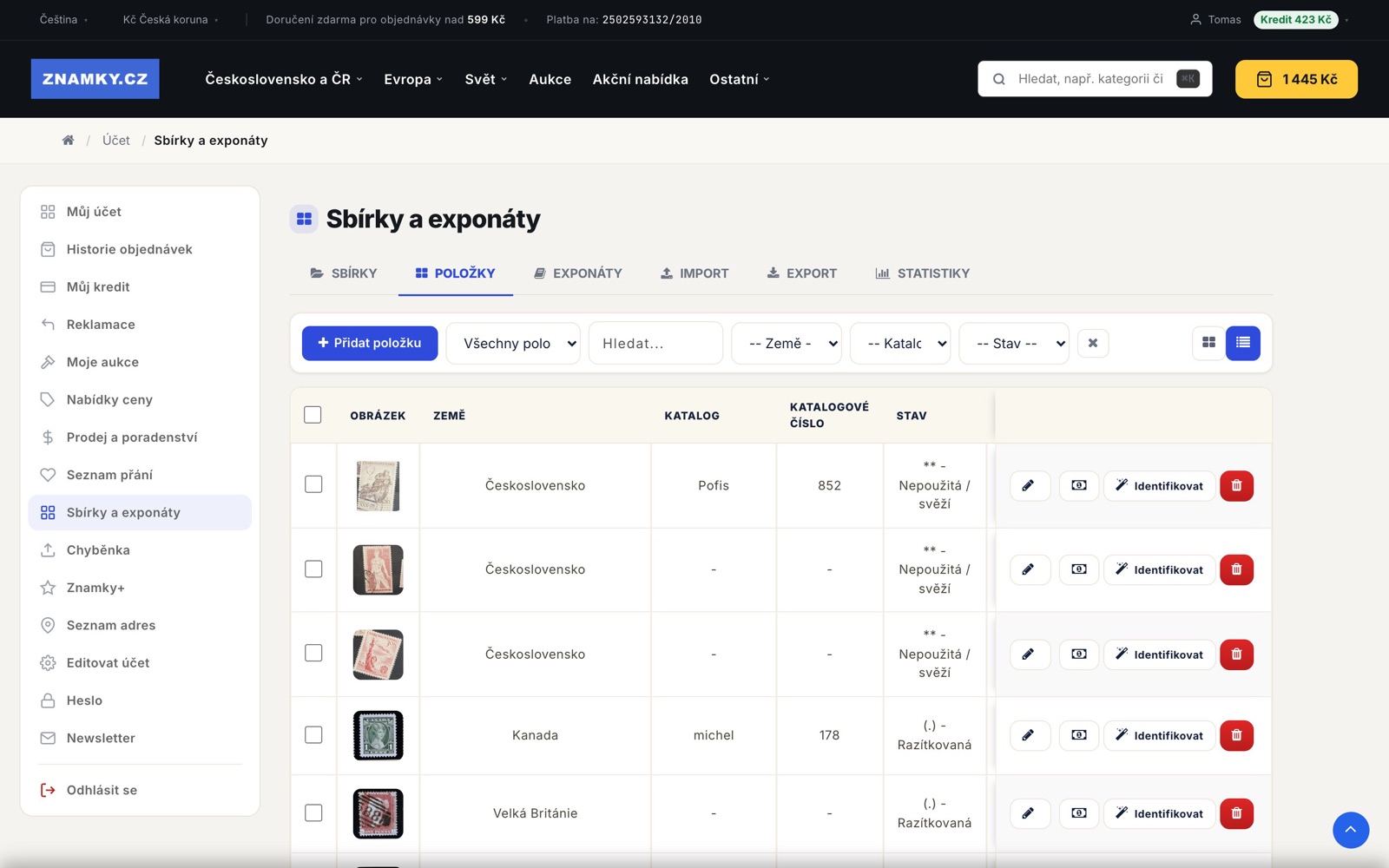
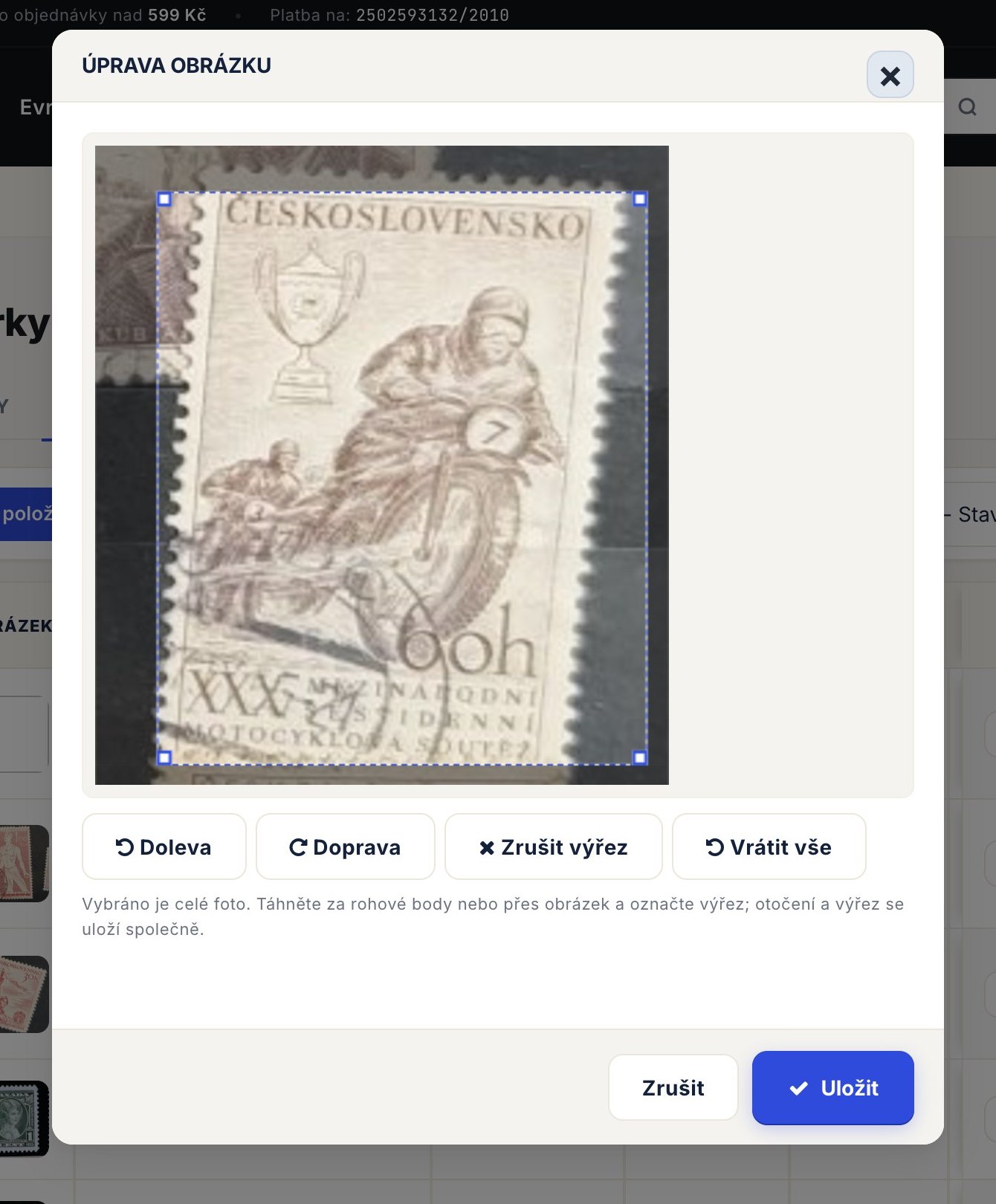
New: edit photos right in the list — hover over an image to crop or rotate the stamp; the edited photo syncs to the mobile app instantly.
What to do with a finished collection
- Folders and groups — split the collection by country, period or your own logic.
- Want list — save what you are missing and the system watches for it to appear in the offer.
- Sharing and the online exhibition — a folder can be shared by link and entered into the interactive online exhibition, or shared with fellow collectors.
- Selling — items can also carry a selling price, so the collection doubles as the basis for an offer.
Free, or Znamky+
The basic version is free with limits on the number of items, folders and AI recognitions — plenty to try it out. The Znamky+ subscription lifts the limits and adds benefits in the shop as well. Your current usage is shown right above the collection.
Under the hood: how recognition works and what the new version can do
Recognition runs in two steps. First a detector finds the individual stamps in the image — a photo or a scan — and cuts them out; each cut-out is then matched against items that have passed through our shop, and a suggested country and catalogue number is filled in. The detector and the matching are our own proprietary AI technology — our own model. We keep working on new versions. The latest addition is automatic straightening of tilted photos — a slightly skewed shot is levelled by the collection itself before recognition. This is what the tuning tests looked like — old version on the left, new on the right:
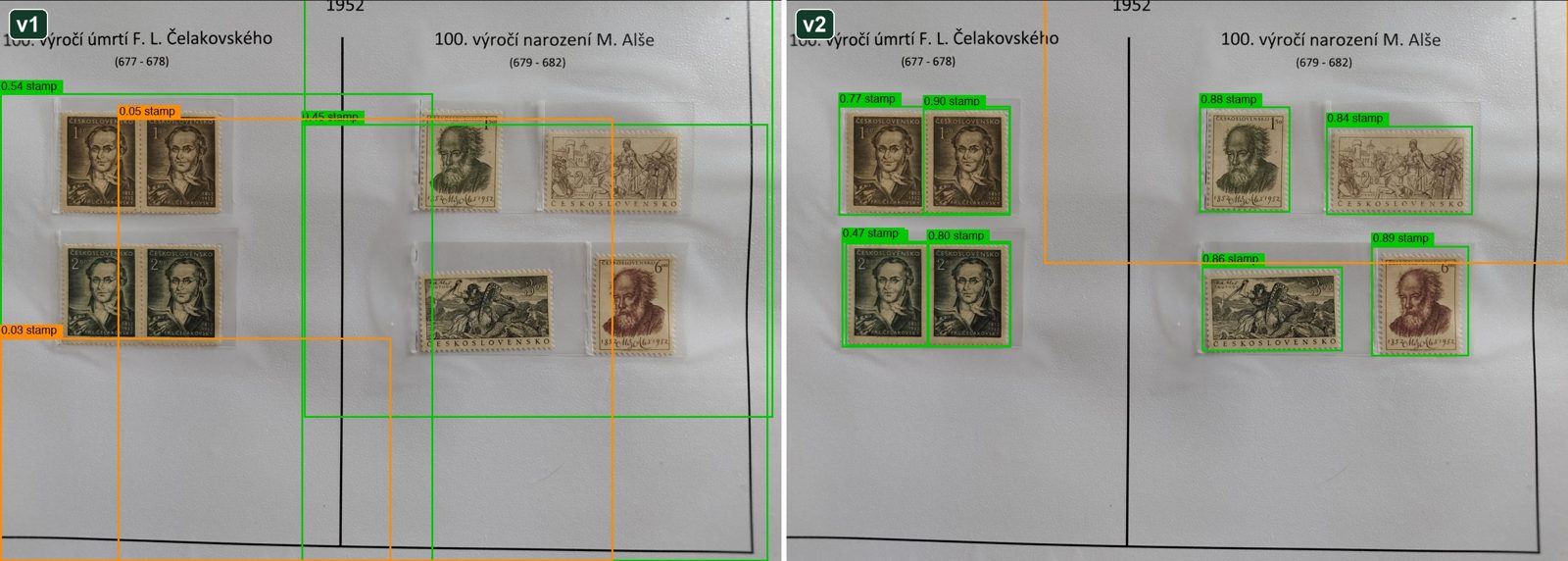
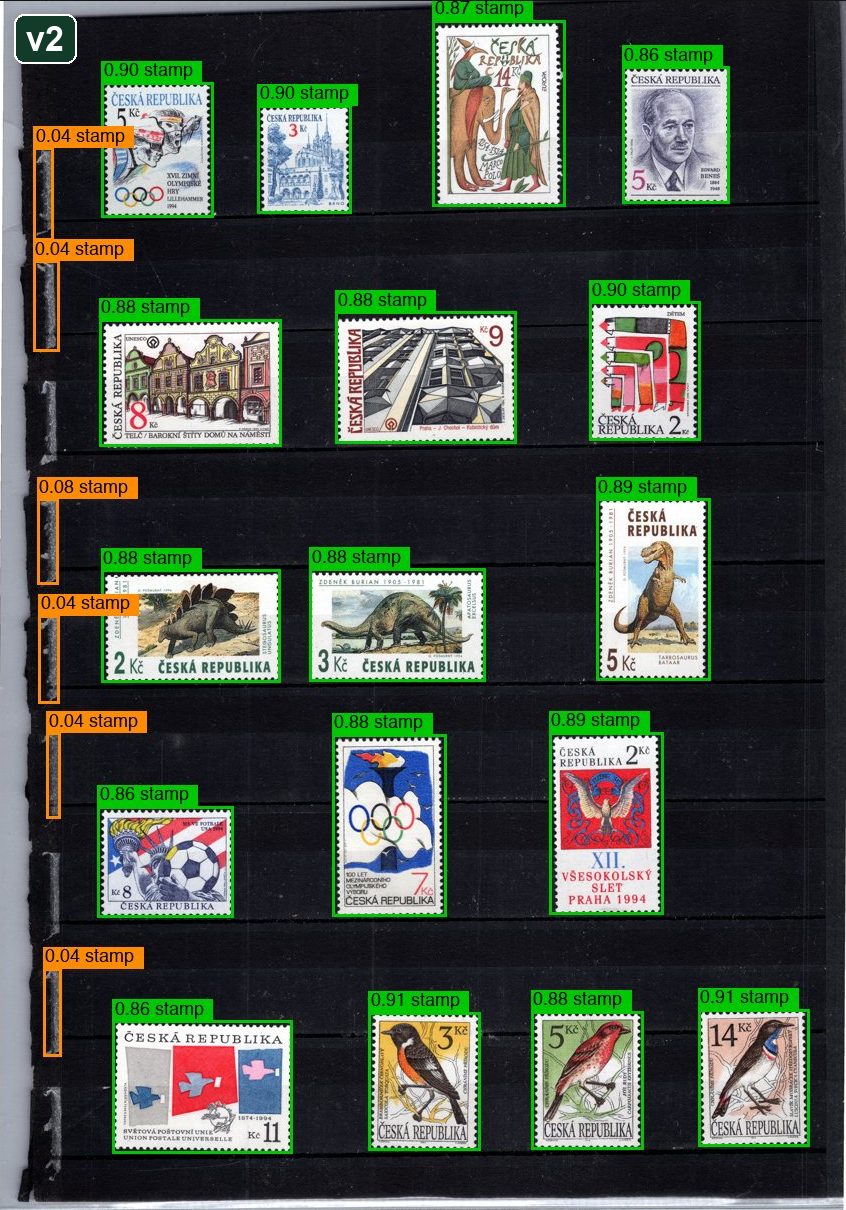
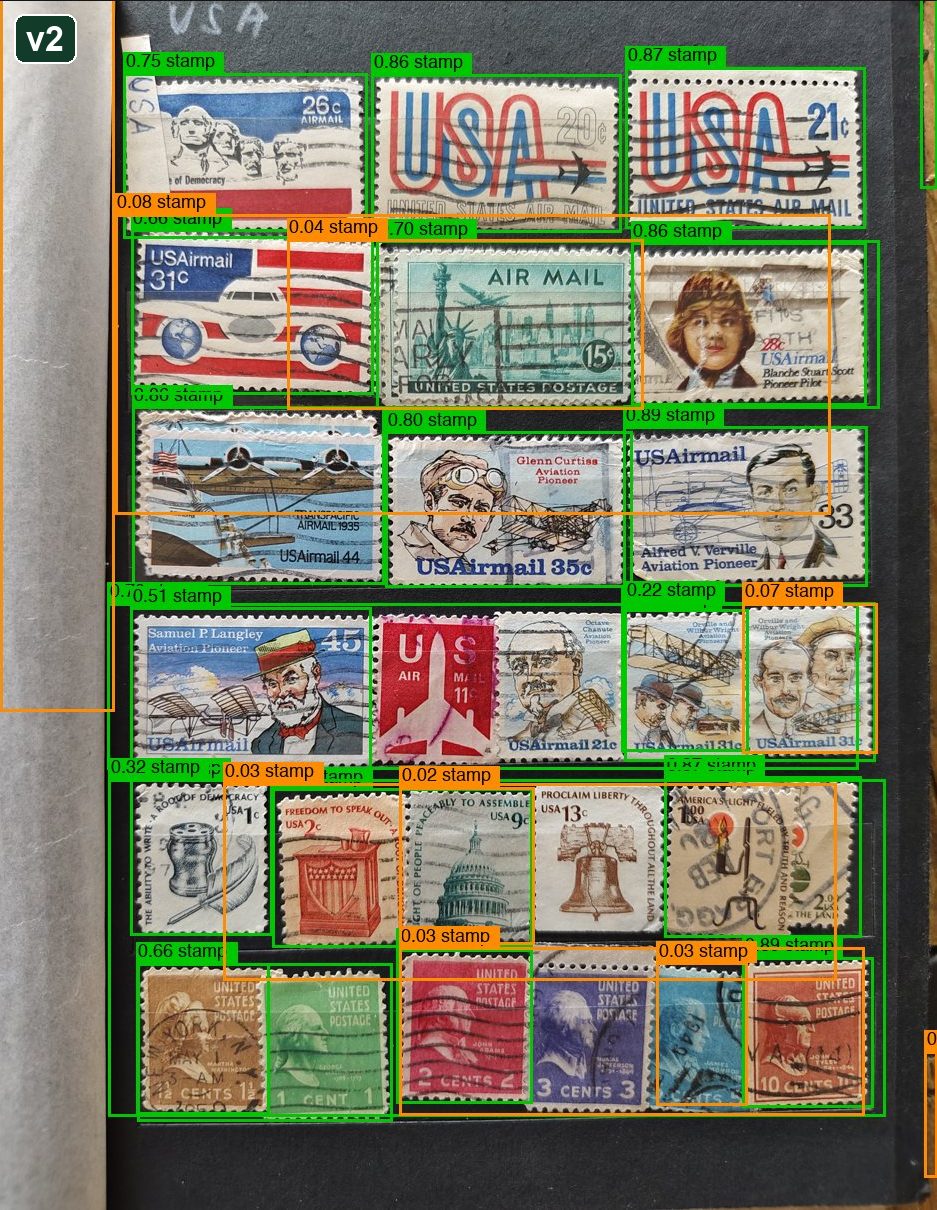
A note on the examples: this is how the system sees the page. The coloured boxes with percentages are the computed probability that something is a stamp (or another kind of item) — based on it the system selects what will finally be cut out of the image, whether it is a photo or a scan. In the app you never deal with any of this: you only see the result, the final cut-out images of the individual stamps.
Three simple rules for the best results follow from the tests:
- Photograph stamps on a dark background. Black stockbook pages work best — the stamps stand out clearly.
- Stamps must not overlap. As the example shows, overlapping pieces get merged, recognised with low confidence, or skipped.
- Even light without reflections, shot straight from above. A slight tilt of the photo is straightened automatically.
And how about identifying the specific stamp? For unambiguous items — say ČSR II stamps or the ČSR issues of 1929–1938 — identification works fairly reliably. We know our limits, though: with fine nuances such as the T. G. Masaryk stamps (Pof. 190–207), overprint types or spiral types we run into the boundaries set by photo resolution and quality. Which is another reason every suggestion is a recommendation to confirm, not a verdict.
What we are still working on
Let us be honest: recognition is not infallible and never will be. On common issues in good condition it performs very well; with hard-to-separate types, overprints and shades it is a suggestion to confirm, not a verdict — which is why every stamp shows a confidence percentage and why everything can be overridden. We keep tuning the model and the catalogue matching and extending it to further collecting fields (banknotes and more). When the AI gets something wrong, that is useful feedback for us — let us know.
How to start?
Download the app from Google Play, sign in with the same account as on the website and photograph your first album page. For everything else the app can do, see the complete mobile app guide.
Frequently asked questions
How does AI stamp recognition work?
You photograph a whole album page, the AI finds the individual stamps in the image, cuts them out and for each one suggests a catalogue number, country and condition together with a confidence percentage. You confirm or adjust the suggestions and the stamps are saved to your collection.
How is the collection's value tracked?
You record the purchase price, selling price and your own estimate yourself, and the collection statistics add them up. An automatic value suggestion based on shop prices is in preparation.
Do I have to be a customer to use the collection?
No. The digital collection and AI recognition are available to every registered user; a purchase is not required.
Does the collection work on a computer too?
Yes. The mobile app and the web share one account and one collection — the phone suits scanning, the web suits bulk edits and statistics.